
RemoveTexts vs TinyFast
Side-by-side comparison to help you choose the right tool.

RemoveTexts
Effortlessly erase text and watermarks from images in seconds with RemoveTexts—no skills needed, just paint and let AI do the magic!.
Last updated: March 11, 2026

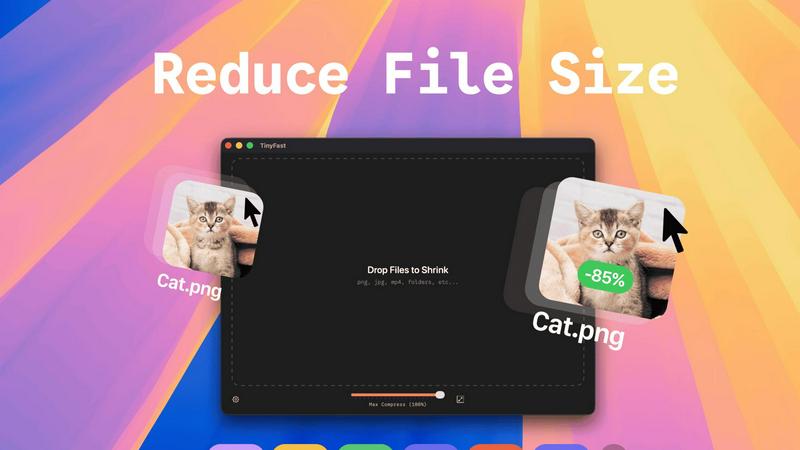
Shrink images, videos, and PDFs instantly on your Mac with TinyFast for fast, private, and hassle-free file.
Last updated: February 28, 2026
Visual Comparison
RemoveTexts

TinyFast
Feature Comparison
RemoveTexts
Paint to Remove
This feature allows users to brush over specific areas of text they want to eliminate. The AI intelligently detects the painted regions and removes the text without leaving a trace, giving you precise control for targeted edits.
Auto Remove All
With just one click, users can take advantage of the Auto Remove All feature, which allows the AI to detect and erase every text element automatically. This is perfect for those who need quick, comprehensive cleaning of their images.
Edit & Replace Text
Forget about the old text! The Edit & Replace Text feature lets users change existing text in images while perfectly matching the original font style. This means you can customize visuals without compromising on quality!
Remove Objects
Need to eliminate more than just text? The Remove Objects feature allows users to erase unwanted elements like logos or even people from photos, ensuring a clean and professional appearance in every image.
TinyFast
Batch & Drag-Drop Shrink
TinyFast allows you to drop entire folders into the app, providing optimized output in seconds! No more tedious one-by-one file compression; just drag and drop, and let TinyFast handle the rest. This feature is perfect for users who have multiple files to compress and want to save time.
Blazing-Fast Compression
Experience lightning-fast compression with TinyFast's optimized native engines! Unlike online tools that require uploads and downloads, TinyFast compresses files instantly on your device, eliminating wait times. You can shrink large files in seconds, streamlining your workflow and enhancing productivity.
Resize Resolution
With TinyFast, you can automatically resize the resolution of your images and videos! This feature is especially useful for those who need to adapt file sizes for different platforms or applications. Customize your output to suit your needs without compromising on quality.
100% Local & Private
TinyFast guarantees that your files remain completely private. No uploads, no cloud servers—your files never leave your machine! This design ensures total confidentiality, making it the perfect solution for anyone concerned about data security, such as developers and designers working with sensitive materials.
Use Cases
RemoveTexts
E-commerce Product Photos
Online sellers can use RemoveTexts to clean up product images by removing watermarks or distracting text, presenting their products in the best light to attract potential buyers.
Social Media Graphics
Content creators can utilize RemoveTexts to erase unwanted captions or overlays from images, ensuring that their social media posts are visually appealing and free from distractions.
Legal Document Redaction
Legal professionals can rely on RemoveTexts to remove sensitive information or text from documents, allowing for secure sharing while maintaining a professional appearance.
Personal Photo Enhancement
Individuals looking to enhance personal photos can use RemoveTexts to remove date stamps or other unwanted text, creating beautiful memories that are free from distractions.
TinyFast
Creator's Toolkit
Whether you're a graphic designer, video editor, or web developer, TinyFast is an essential tool in your creative arsenal. Compress images and videos quickly to optimize your projects and improve loading times on websites, ensuring a smooth user experience.
Efficient File Management
For professionals who handle numerous files daily, TinyFast transforms the way you manage your assets. The ability to batch compress entire folders means you spend less time on file management and more time on what truly matters—your work!
Secure Document Handling
TinyFast is the go-to solution for anyone dealing with confidential documents. With the assurance that your files remain local and private, you can compress sensitive PDFs and other documents without the fear of them being stored on external servers.
Streamlined Workflow for Developers
Developers can greatly benefit from TinyFast by compressing images, audio files, and code assets efficiently. This ensures that applications run faster and consume less storage, all while maintaining high-quality visuals and sound.
Overview
About RemoveTexts
RemoveTexts is an incredible AI-powered image editing tool designed to effortlessly remove unwanted text from images in seconds! Whether you are dealing with watermarks, subtitles, memes, or any distracting text, RemoveTexts has got you covered. The platform is perfect for creators, marketers, and designers who need clean visuals without the hassle of complex software like Photoshop. With its user-friendly interface, anyone can achieve professional-grade results without any design skills! Just upload your image, let our advanced AI do the heavy lifting, and watch as your image transforms into a clean masterpiece. Trusted by over 100,000 users worldwide, RemoveTexts combines cutting-edge technology with speed, making it the go-to solution for anyone looking to enhance their visuals quickly and efficiently. Say goodbye to unwanted text and hello to stunning images that shine!
About TinyFast
TinyFast is the ultimate local file compressor designed specifically for macOS users who crave speed, efficiency, and privacy! Say goodbye to the days of waiting for slow online tools and worrying about file security. With TinyFast, you can effortlessly compress a wide array of file types, including PNG, JPEG, MP4, MOV, PDF, SVG, WebP, MP3, and GIF, all from the comfort of your Mac. This powerful application allows you to simply drag and drop your files, and within seconds, you receive perfectly compressed versions without ever leaving your device. It's the ideal solution for developers, designers, and creators who frequently handle large or sensitive files. Why risk uploading confidential assets to unknown servers when you can maintain total control? TinyFast prioritizes your privacy, ensuring your files stay on your machine. Experience the blazing-fast compression with optimized native engines, batch processing capabilities for entire folders, and seamless integration into your workflow. Transform your file management process today with TinyFast, the fast, safe, and incredibly efficient way to reduce file sizes!
Frequently Asked Questions
RemoveTexts FAQ
How does RemoveTexts work?
RemoveTexts leverages advanced AI and deep learning technology to analyze images and intelligently reconstruct backgrounds after removing text. This ensures seamless and professional results.
What image formats does RemoveTexts support?
The tool supports popular image formats including JPG, PNG, and WebP, making it accessible for most users. You can upload images up to 10 MB in size.
Is there a limit to how many images I can process?
While there is no stated limit to the number of images you can process, RemoveTexts is designed for efficiency and can handle multiple images quickly, serving the needs of high-volume users.
Can I trust the quality of the edits?
Absolutely! RemoveTexts ensures that the original image quality is preserved with no compression or loss of detail. You can expect clean, professional results every time!
TinyFast FAQ
How does TinyFast ensure file privacy?
TinyFast compresses files locally on your device without any uploads to cloud servers. This means your files never leave your machine, providing complete privacy and security for sensitive data.
What file types does TinyFast support?
TinyFast supports a wide range of file types, including images (PNG, JPG, TIFF, HEIC, WEBP, GIF, BMP, SVG), videos (MP4, MOV, M4V), documents (PDF, DOCX), code files (JS, CSS, JSON), and audio files (MP3).
Is there a limit to how many files I can compress?
With the free plan, you can compress up to 5 files per day. For those needing unlimited local compressions, TinyFast offers a lifetime plan or a monthly subscription option.
How do I get started with TinyFast?
Getting started is simple! Download TinyFast for Mac, drag your files into the app, and watch as they are compressed instantly. Enjoy the ease and efficiency of managing your file sizes locally!
Alternatives
RemoveTexts Alternatives
RemoveTexts is an innovative AI-powered tool designed to effortlessly remove text from any image in mere seconds, making it an essential resource in the image and photo editing category. Users find themselves seeking alternatives for various reasons, including pricing concerns, specific feature requirements, or compatibility with different platforms. As more creators, marketers, and designers look for solutions that best fit their unique needs, the search for the perfect text removal tool becomes a priority. When selecting an alternative to RemoveTexts, consider factors such as ease of use, the range of features offered, and the quality of output. Look for tools that provide precision editing capabilities, support for multiple languages, and quick results without requiring extensive design skills. Ultimately, the right alternative should empower users to achieve their goals efficiently and effectively.
TinyFast Alternatives
TinyFast is an innovative local file compressor designed specifically for macOS users, enabling them to quickly shrink images, videos, and PDFs right on their devices. This powerful tool is perfect for developers, designers, and creators who prioritize speed and privacy when managing large or sensitive files. As users navigate their options, they often seek alternatives due to various factors such as pricing, specific feature sets, or compatibility with different platforms. When searching for an alternative, it is essential to consider aspects like the speed of compression, privacy measures, ease of use, and support for multiple file formats. Users should also evaluate whether the software offers batch processing capabilities and whether it operates locally or requires an internet connection to function. Making informed choices ensures that users find a solution that fits their unique workflow and requirements.